
How to use Spisko
This guide shows how to use Spisko, from your first list to a pantry that keeps itself up to date. Each part names the buttons as the app shows them, with a screenshot of the screen. Everything here is free unless it says Plus.
Getting started
Create a free account with your email or Google. The first time you sign in, Spisko asks what you want to do first: start a list, scan products, share with your household or save your stores. Pick one, or choose Skip for now.
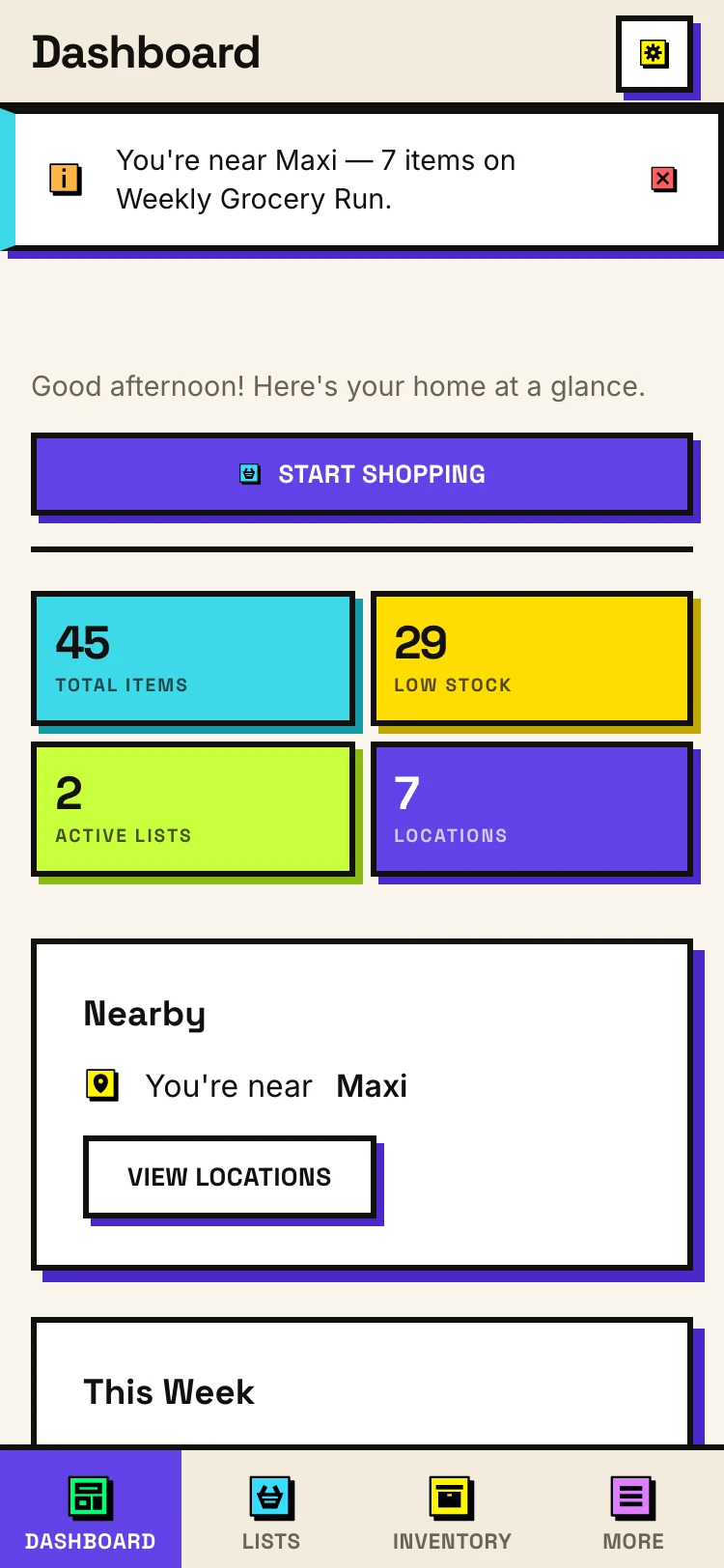
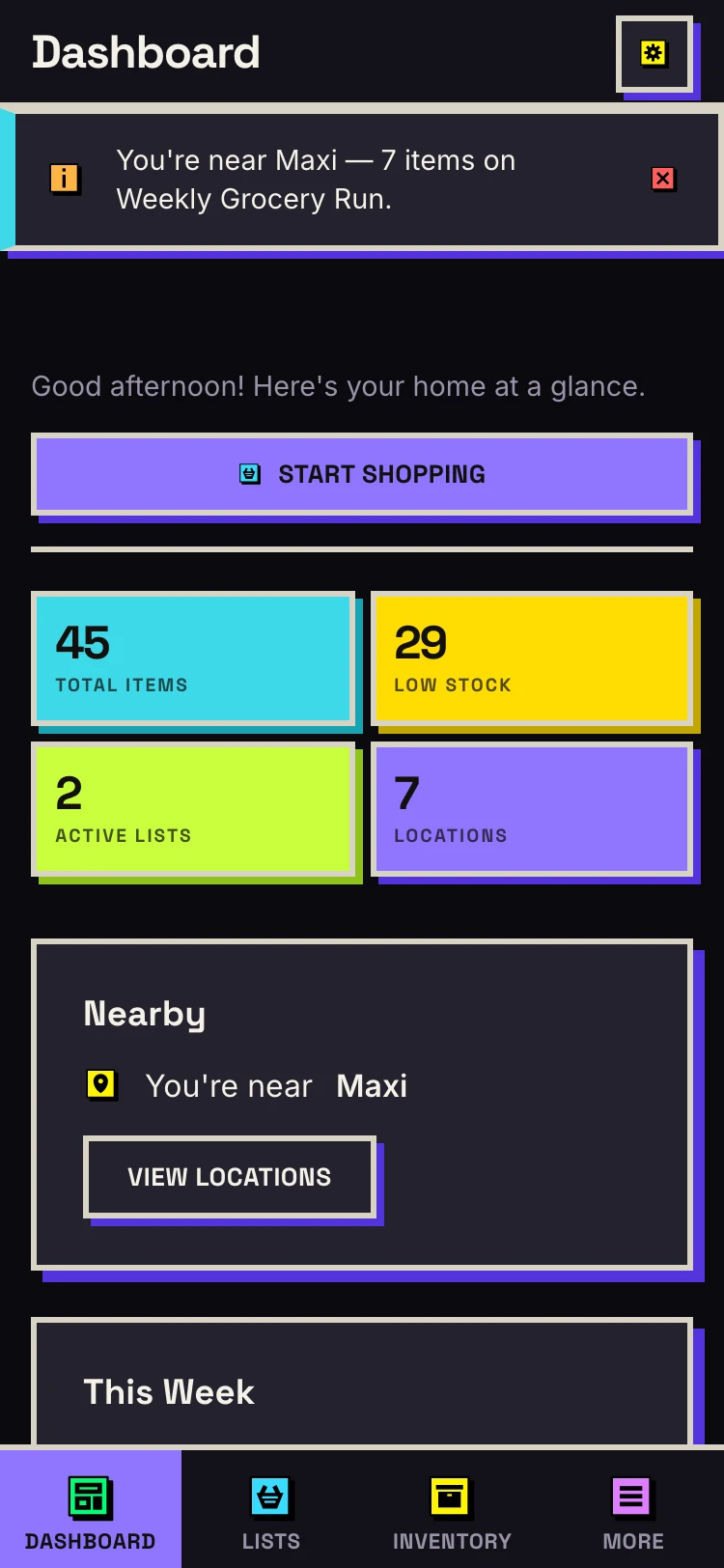
The bar at the bottom has four places: Dashboard, Lists, Inventory and More. The dashboard shows your lists, what is running low, what you buy most and the stores near you. More holds Activity, Recipes, Locations and Spaces. Settings is the gear at the top right.
Spisko works in any browser. To open it like an app:
- Android: install Spisko from Google Play.
- iPhone and iPad: open spisko.com in Safari, tap Share, then Add to Home Screen.
- Computer: in Chrome or Edge, choose Install in the address bar.
Lists and shopping
- Open Lists and choose Create New List. Name it and pick what kind of list it is (below).
- Type what you need in the box at the top of the list. Things from your inventory are suggested as you type.
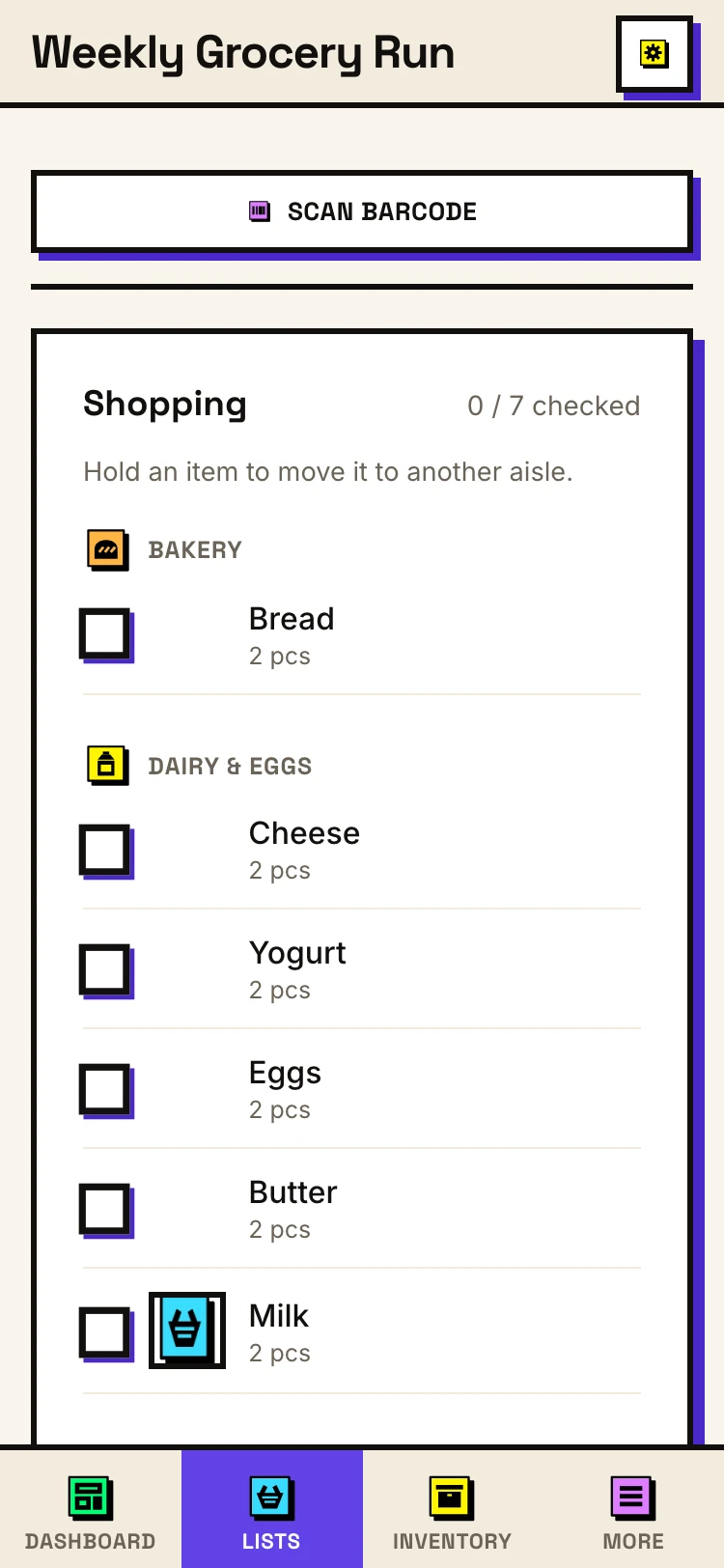
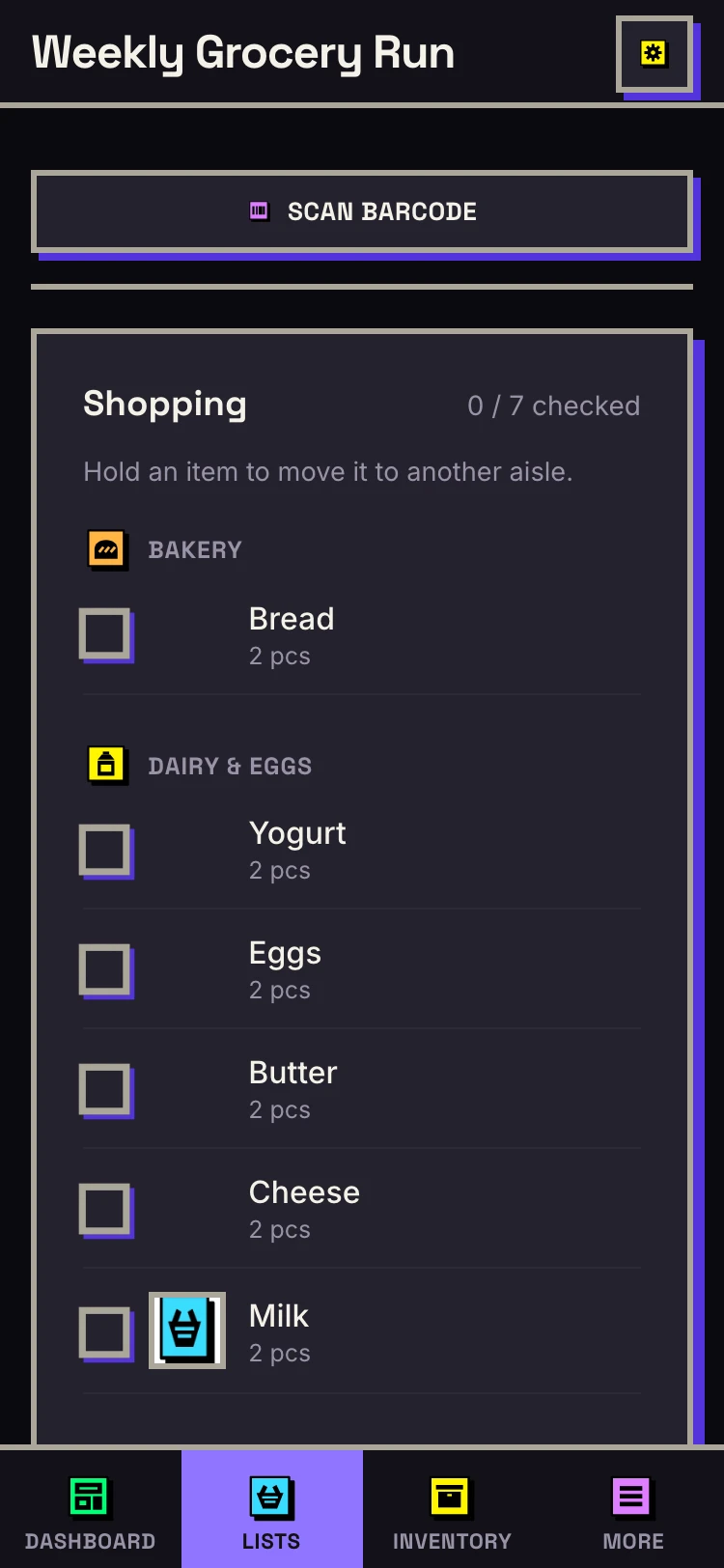
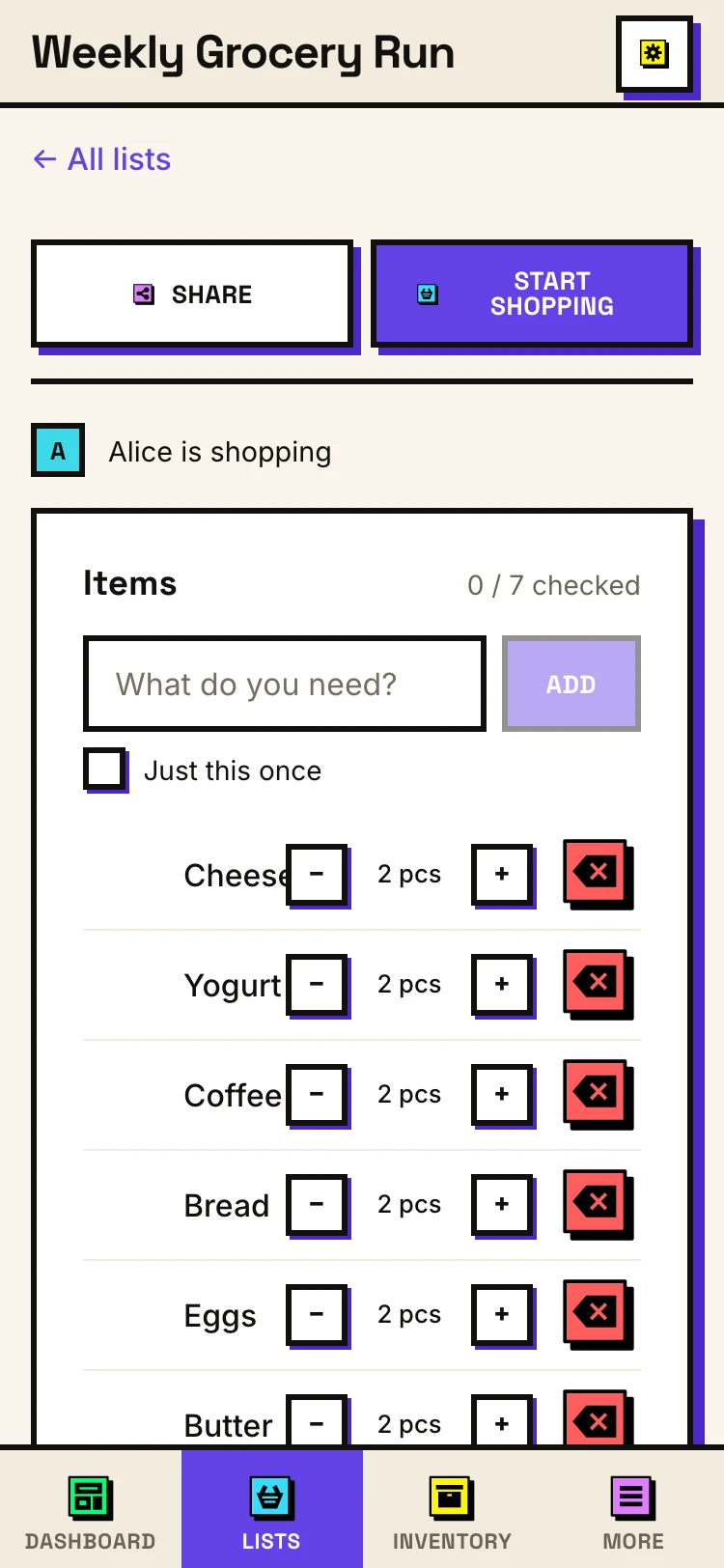
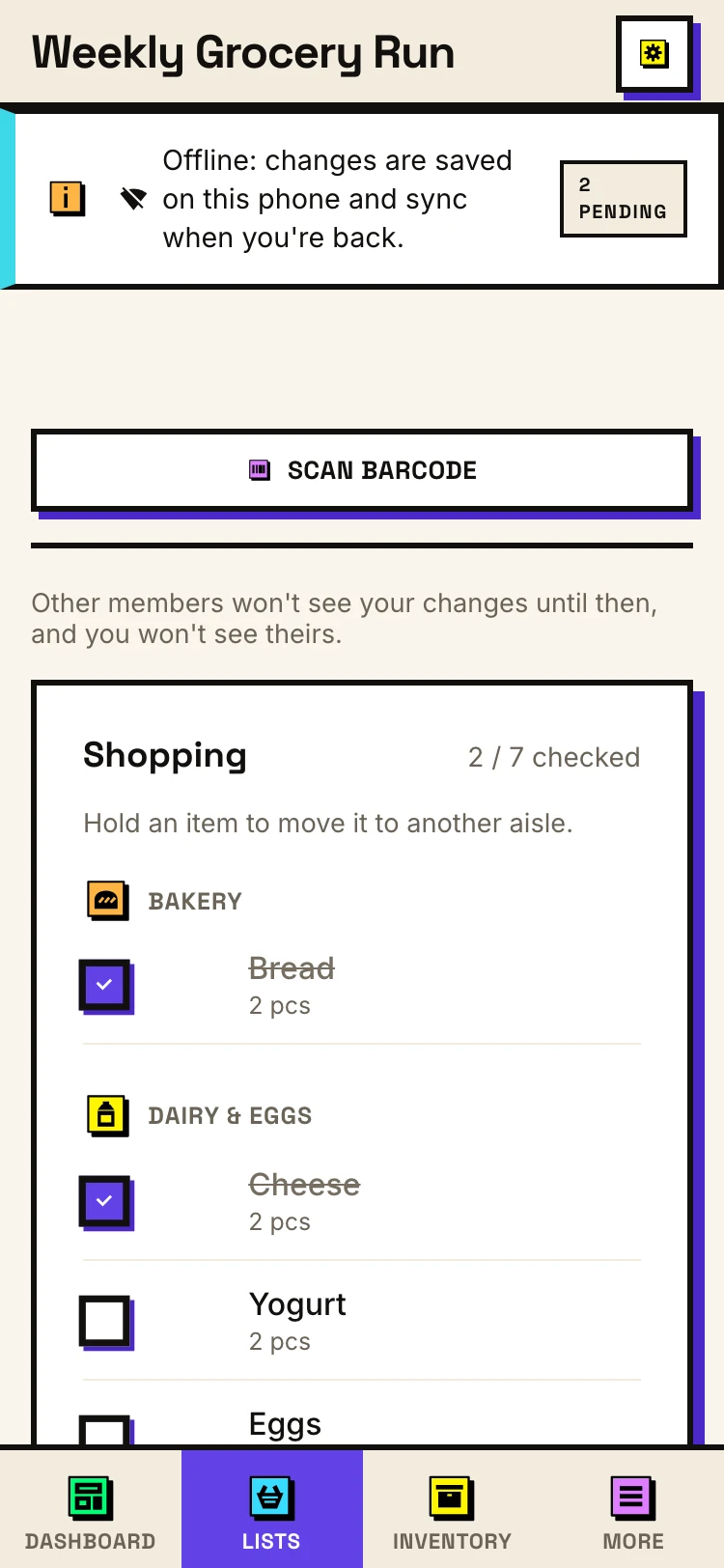
- In the store, tap Start Shopping. The list groups itself by aisle: fruit and vegetables, bakery, dairy and so on.
- Tick things off as they go in the basket. When you are done, tap Finish Shopping.
Finishing a trip moves what you bought into your inventory. What happens to the list depends on its kind: a Permanent list keeps what you didn't buy, a Recurring list keeps everything and unticks it for next time, and a Single-use list is deleted, with nothing added to your inventory.
- Something you only need once, like a birthday cake, goes on with Just this once turned on, so it stays out of your pantry.
- Hold an item to move it to another aisle. Spisko remembers it for every list.
- A saved store can have its own aisle order: open it in More › Locations, choose Aisle order and drag the aisles into the order you walk them. While you shop there, Edit order does the same. More about aisles.
Inventory: what you have at home
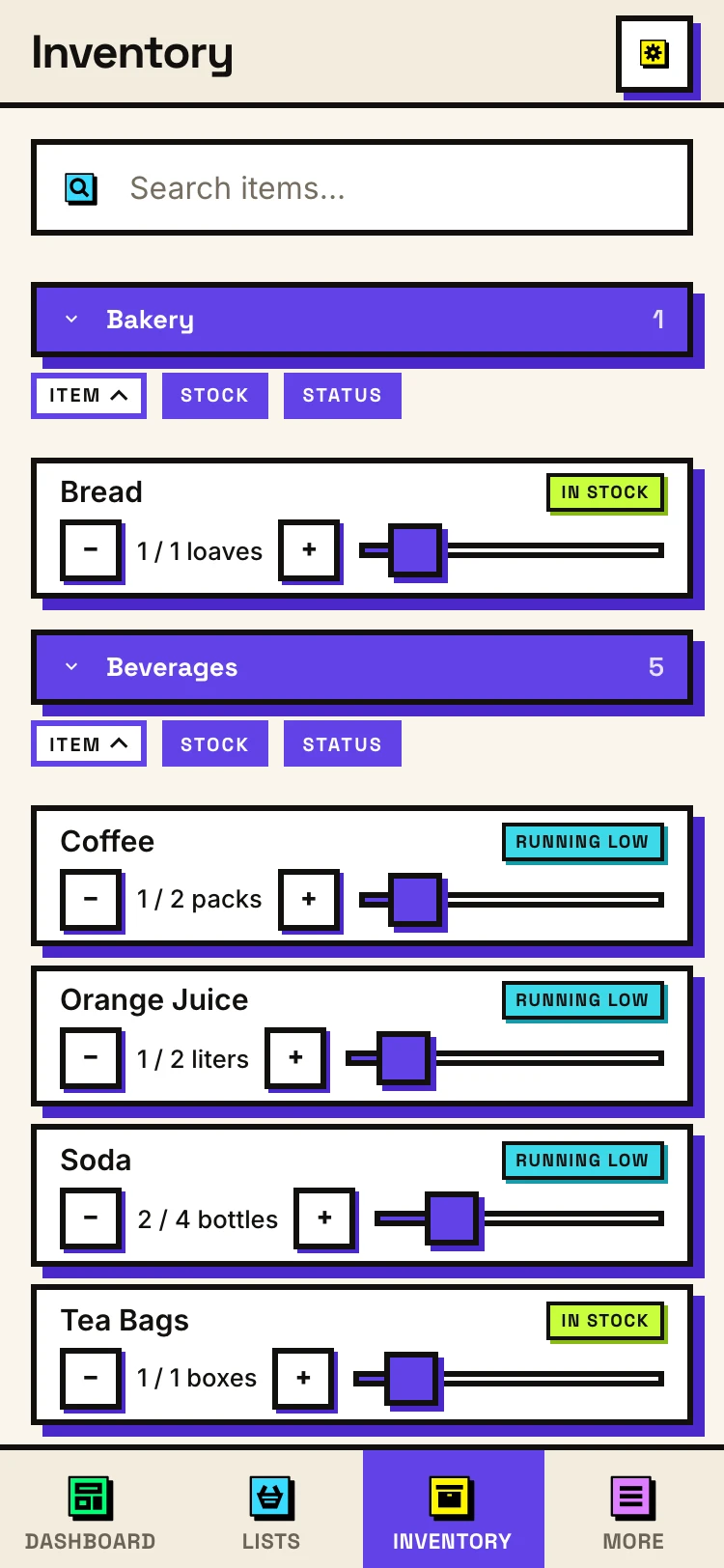
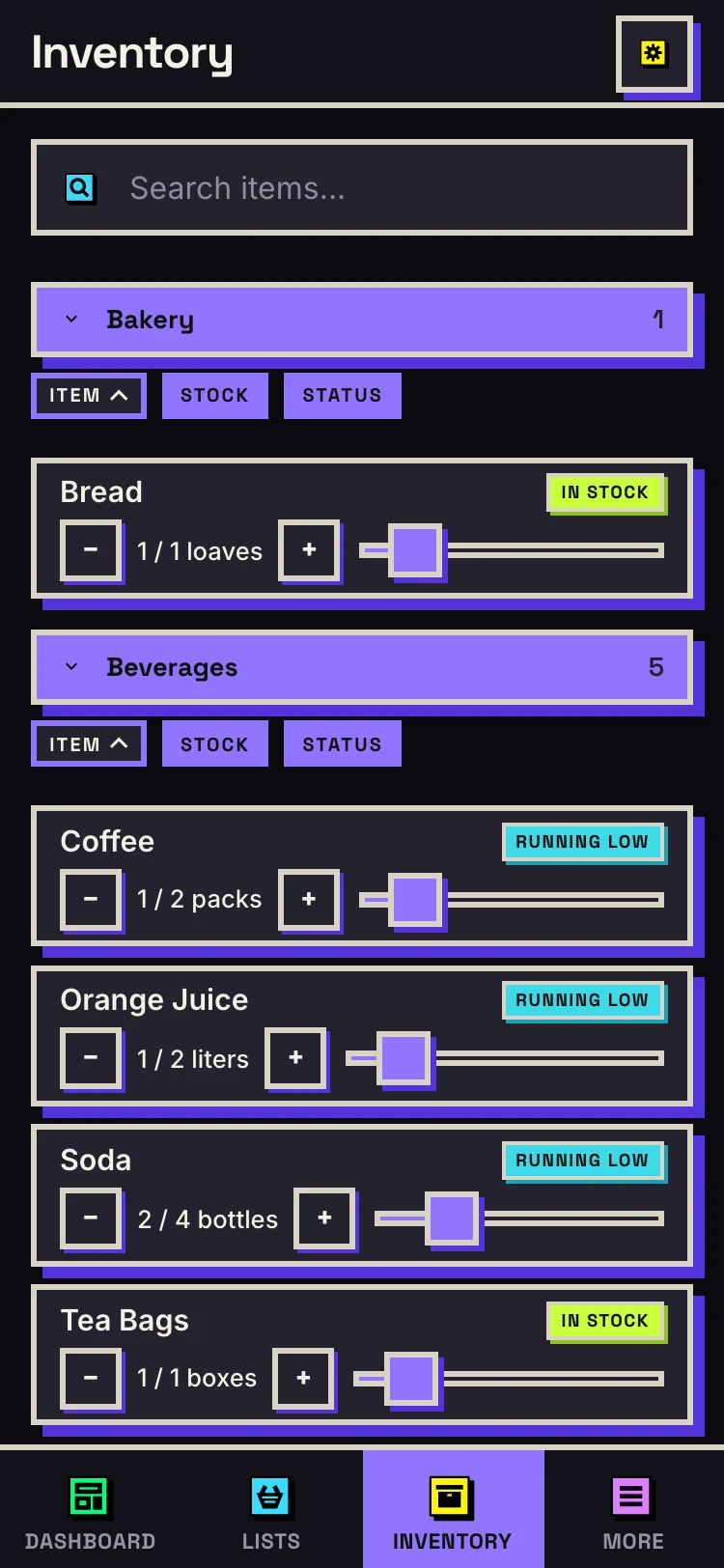
Inventory is your pantry. Each item has how much you have and how much you like to keep. When you are down to half of that or less, the item shows as running low, and a list offers it under Need to Buy.
- Change how much you have with the + and − buttons. For things you judge by eye, like a bottle of oil, choose the slider instead: it goes from empty to full.
- Choose Scan Barcode to add a product by its barcode. In the store, scanning ticks it off your list. If nobody has scanned a product before, you enter its name once and everyone after you gets it.
- Choose Add to List on an item to put it on one or more lists.
- Categories group the inventory into tables, one per category. On a computer, drag an item onto another category.
- With Plus, an item can have a photo.
You rarely need to type quantities: Finish Shopping adds what you bought, and anything you add to a list by name joins the inventory the first time it's bought. More about barcode scanning.
Stores and reminders
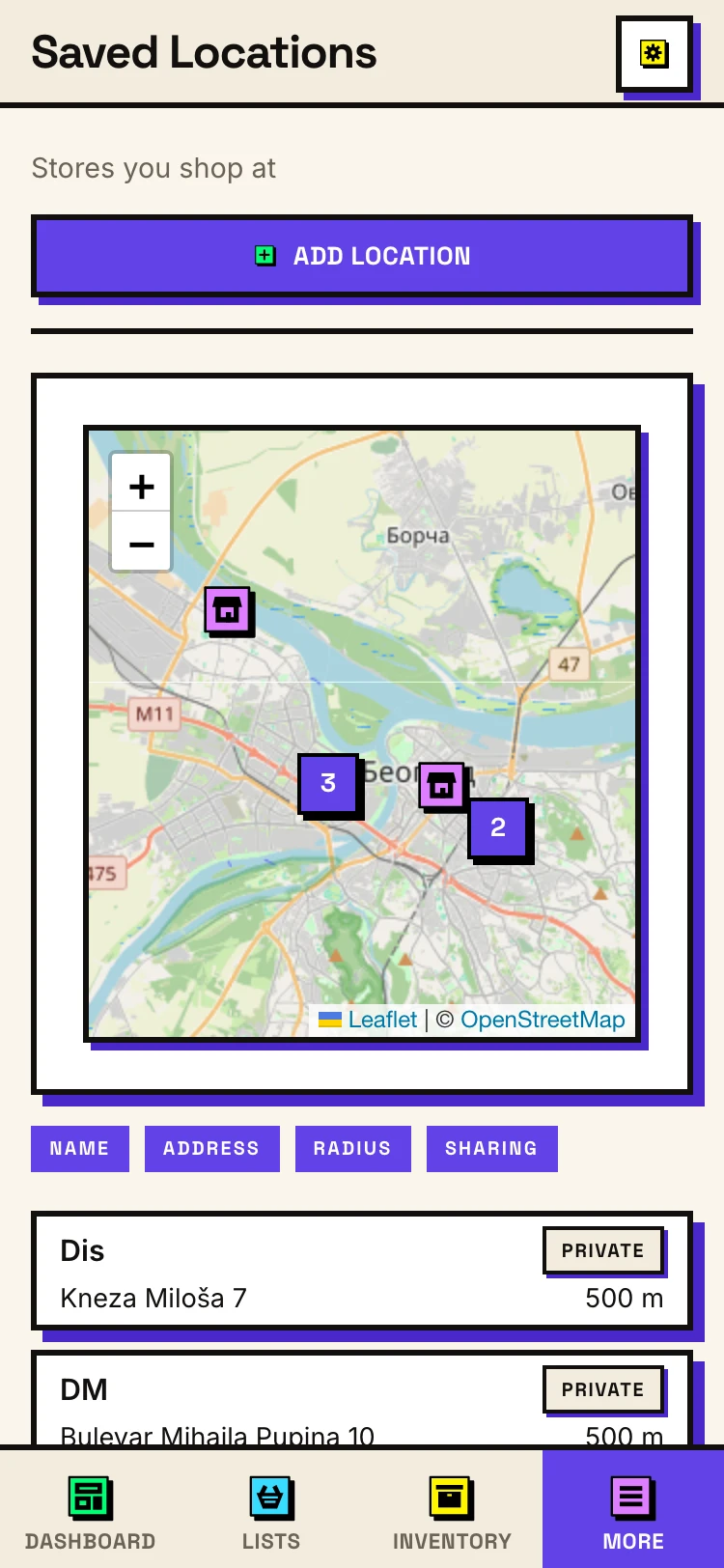
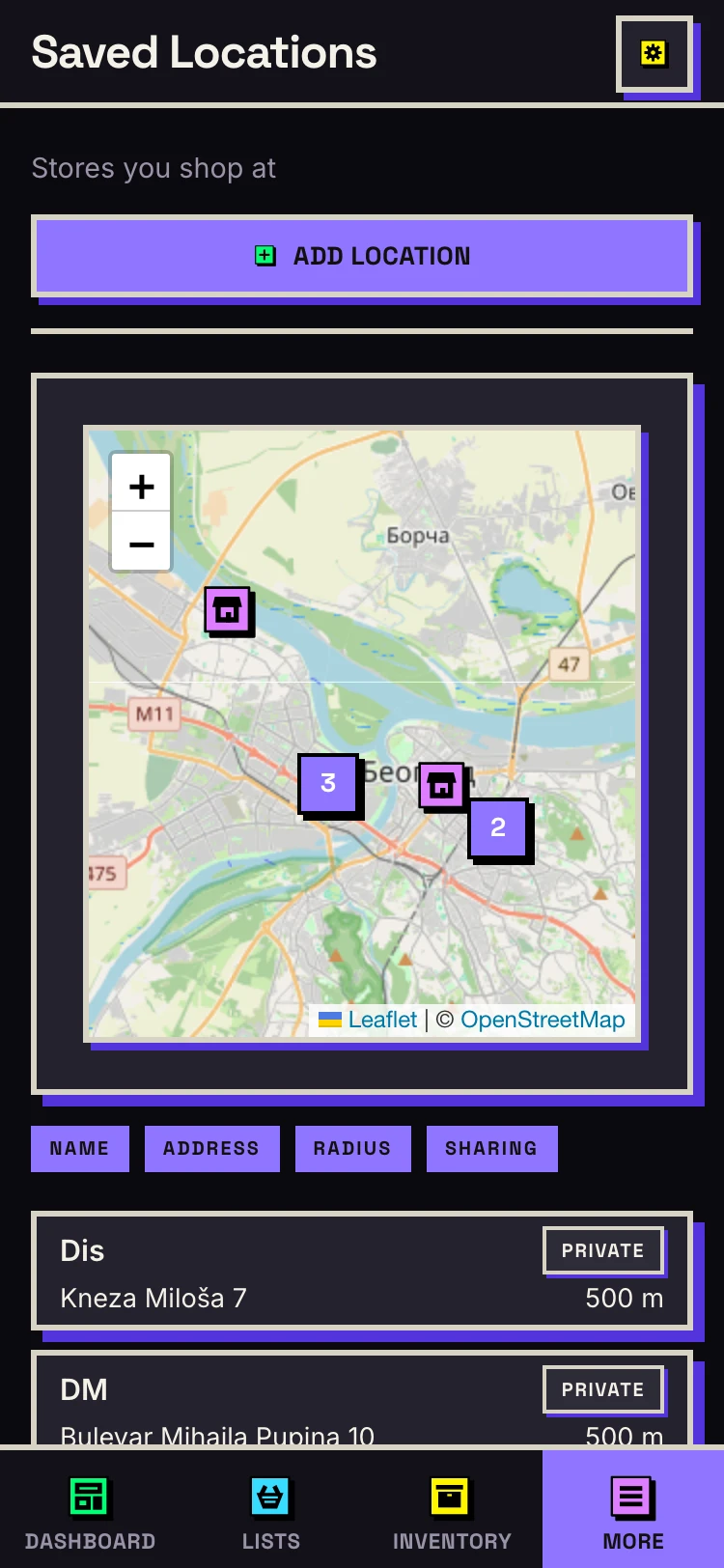
More › Locations is a map of the stores you shop at. Search the map, tap a store and choose Save location. Saved stores can be attached to a list, so the list is sorted in that store's aisle order and reminds you when you're near.
- Nearby Stores on the dashboard lists the shops around you, open ones first, with their opening hours. Tap one to see it on the map, and choose Directions for a route.
- Reminders: in Settings › Location, turn on Proximity Reminders. When you open Spisko near a store and it has things you need, a reminder shows at the top. Spisko checks your location once, when the app opens, and doesn't track you.
- The free plan keeps up to three stores; Plus keeps as many as you like.
Sharing with your household
People who shop together share a space: the lists in it, and the pantry behind them, belong to everyone in it.
- On a list, tap Share. Pick a space, or choose New space to make one.
- Spisko copies an invite link. Send it to whoever you shop with.
- They open the link, sign in or create an account, and join. The list is theirs too from then on.
You can also make a space and invite people from More › Spaces. Admins can remove members, and Regenerate link stops an old invite link working at once.
Free: one space, for up to six people. Changes show when someone opens or refreshes the list. With Spisko Plus on the space owner's account, everyone sees changes as they happen, a bar shows who's shopping right now, and a space can have more people.
Recipes
Recipes come with Spisko Plus. Without it, you can still read the recipes shared with you in a space.
- Open More › Recipes and choose Add recipe.
- Choose From a link and paste the address of a recipe page, or Paste the text of a recipe from a message or a caption. Or choose Write one yourself.
- Spisko reads the recipe and, if you like, translates it into the language the app is in. Check what it read against the original, then save.
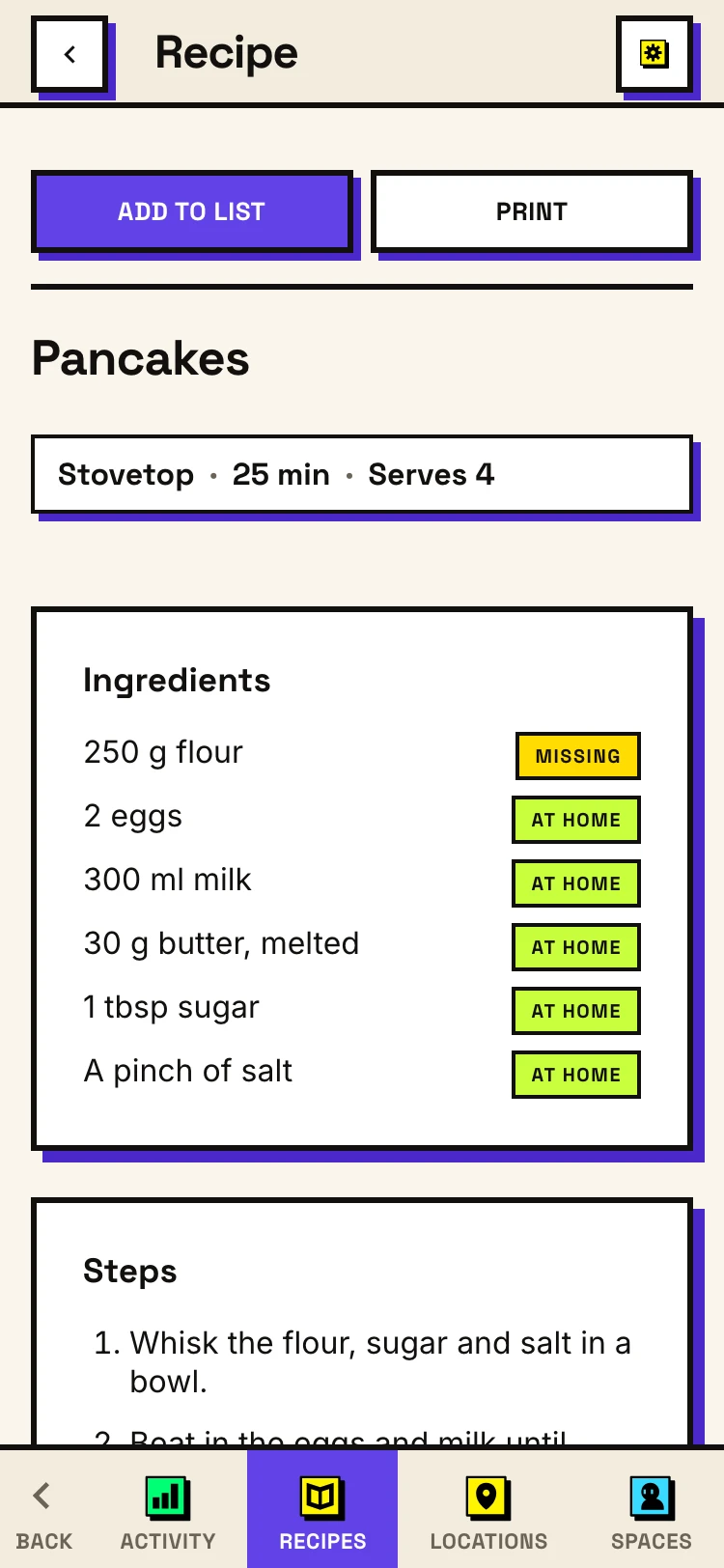
- The recipe marks each ingredient At home or Missing, from your inventory. Choose Add to list: what you don't have at home is ticked, so that's what goes on the list.
A recipe can go in a space, so everyone in it can cook from it. You can also print a recipe or a list as a PDF; a printed recipe ticks what you already have.
Activity, offline use and settings
More › Activity shows your shopping: trips, items bought, the stores you went to and how many days pass between trips, with a day-by-day log. The free plan shows the last 30 days. Plus goes back up to 12 months, shows how fast things run out, and adds an AI reading of your shopping.
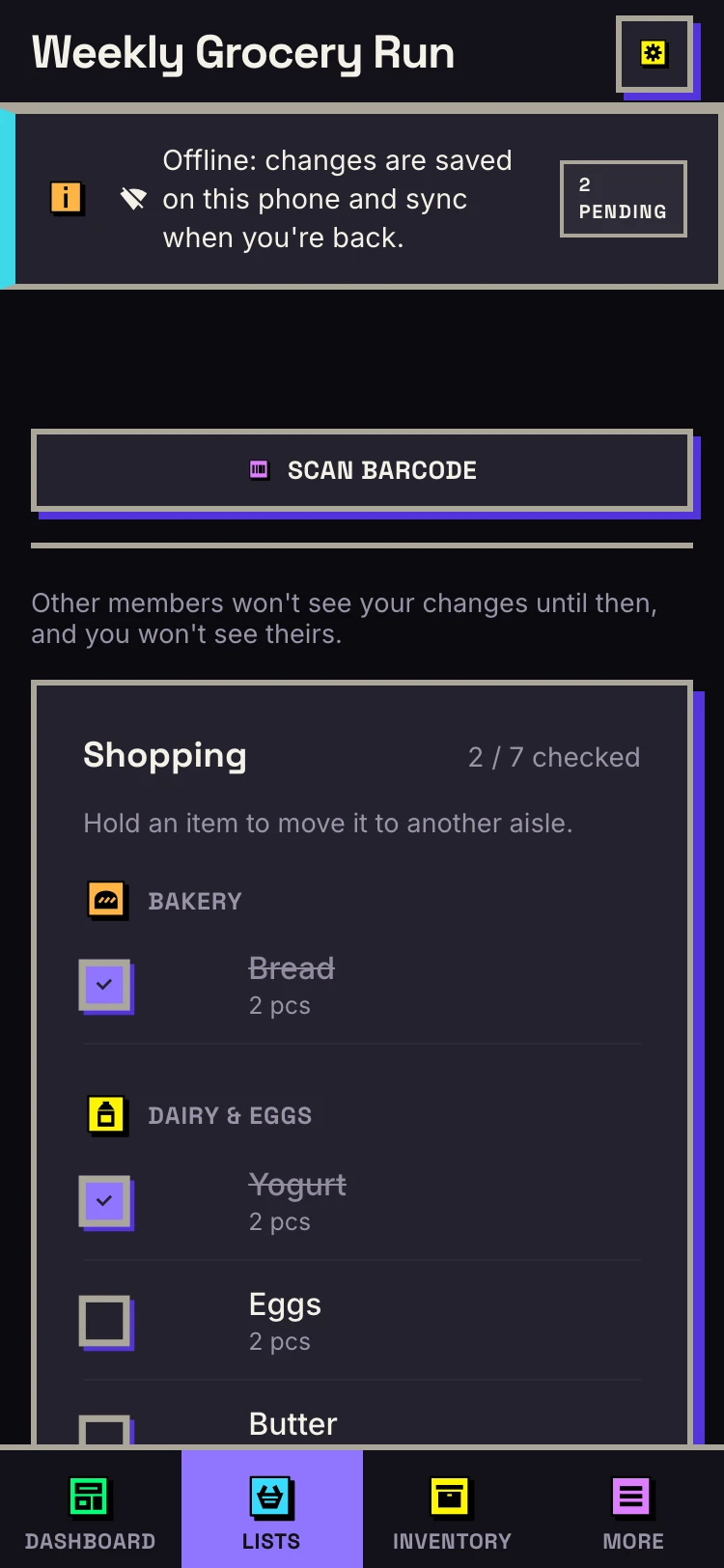
Offline: lists and the inventory work with no signal. Add, tick and finish as usual: the changes are kept on your phone and sync when you're back online, and a note at the top tells you so. Sharing, stores and settings need a connection. More about offline use.
Settings, the gear at the top right, has four tabs:
- Account: your name, the app's language (English, Serbian, Russian, German, Spanish or French; see them all), metric or US units, and your Plus.
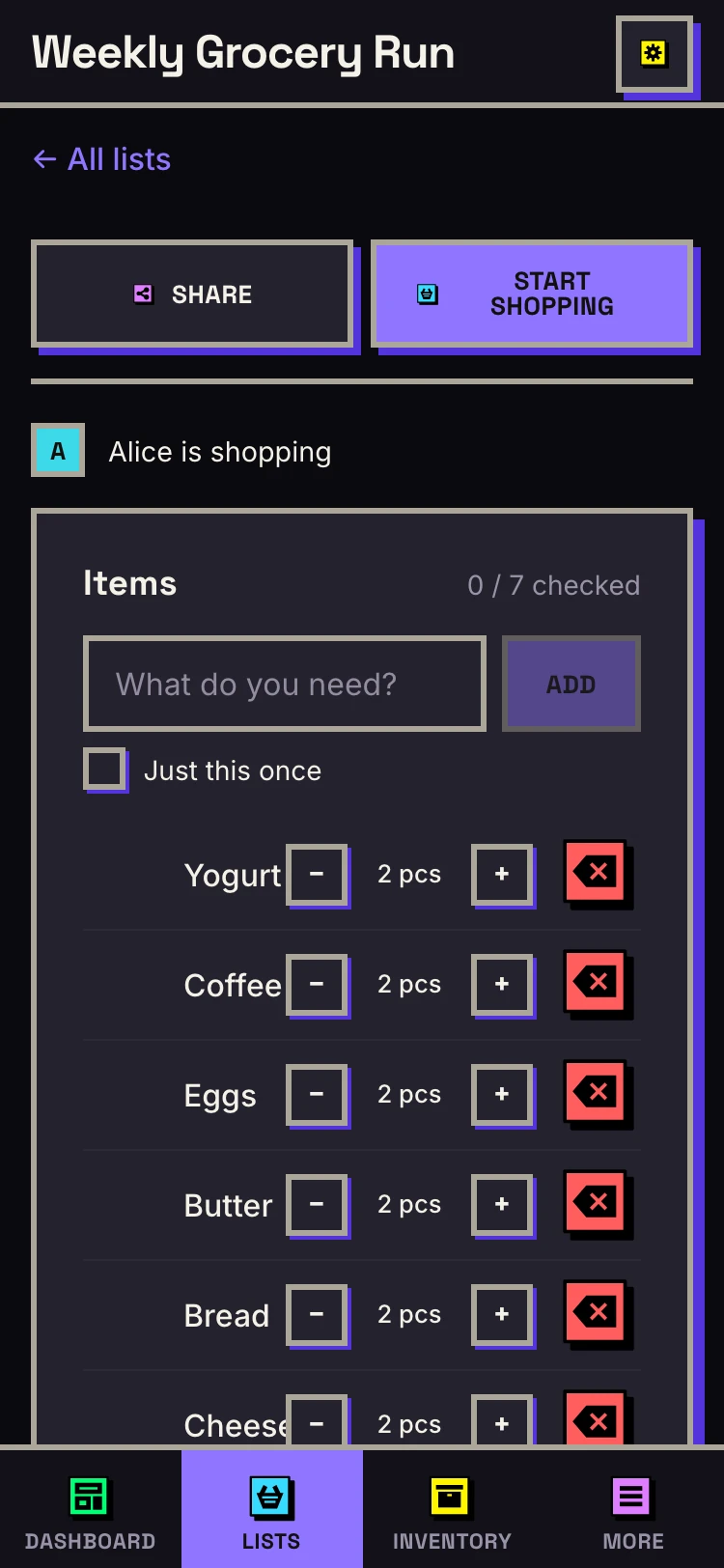
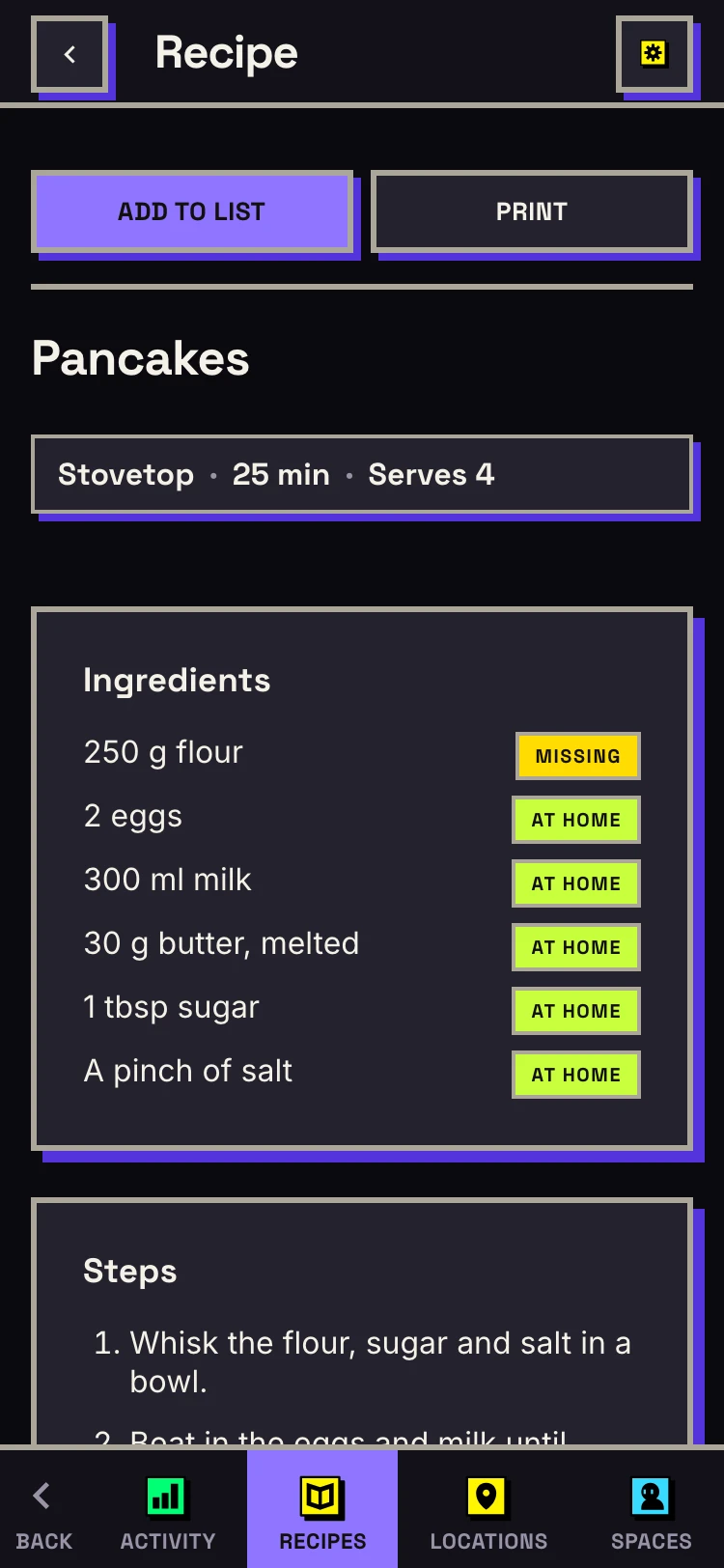
- Appearance: light, dark or your device setting, an accent colour, your own theme, and themes others have published.
- Location: proximity reminders, and location by IP if you would rather not share your exact position.
- API: personal access tokens and connected AI assistants. See connecting an assistant.
Spisko Plus
Everything above is free unless it says Plus. Spisko Plus is an optional subscription that adds:
- Shared lists that update live, and a bar showing who's shopping
- More spaces, more people in them, and as many stores as you like
- Recipes, and printing a list or a recipe as a PDF
- Photos on your items
- Activity up to 12 months back, with an AI reading
- Your own backgrounds, fonts, CSS and icon sets in themes
- AI assistants and personal access tokens
Plus is bought in Spisko's Android app, through Google Play: open Settings › Account › Spisko Plus, or any Plus feature, and choose Get Plus. Once you have it, it works wherever you sign in. Prices are on the pricing page.
Frequently asked questions
Is Spisko free?
Yes. Lists, the pantry, sharing with your household, aisle order, barcode scanning and offline use are free, with no ads. Spisko Plus is optional.
Does Spisko work on iPhone?
Yes. Open spisko.com in Safari, tap Share, then Add to Home Screen, and it opens from your home screen like any other app. On Android it is on Google Play.
Can I use Spisko without signal?
Yes. Lists and the inventory work offline, and your changes sync when you are back online. More about offline use.
Ready to make your first list?
No credit card required • Works on all devices